Overview
CloudFix applies fixes as AWS Systems Manager (SSM) Automation executions. When you generate runbooks for a finder — or the first time you execute one — CloudFix creates that finder's SSM Automation documents ("runbooks") in your management account and shares them with the resource accounts that need them. CloudFix keeps these runbooks in sync automatically and re-checks them right before starting an execution, so generating runbooks ahead of time is a convenience, not a hard prerequisite — execution will deploy a missing or outdated runbook on its own.
To apply a fix, you select the resource(s) on the Available to Execute tab and click Execute. CloudFix starts an SSM Automation execution for each selected recommendation and tracks its status until it completes.
CloudFix previously ran fixes through AWS Change Manager, using change templates and change requests that required a separate approval step before anything could execute. That mechanism has been fully retired and replaced by the direct SSM Automation flow described here; there is no approval queue and no change request to review.
Finding and Executing Fixers on the CloudFix Interface
On the CloudFix Dashboard, if you open any of the Recommendations section (Easy, Medium, Advanced, or Best Practice) and click on any of the individual recommendations, it brings up a dialog with below information:
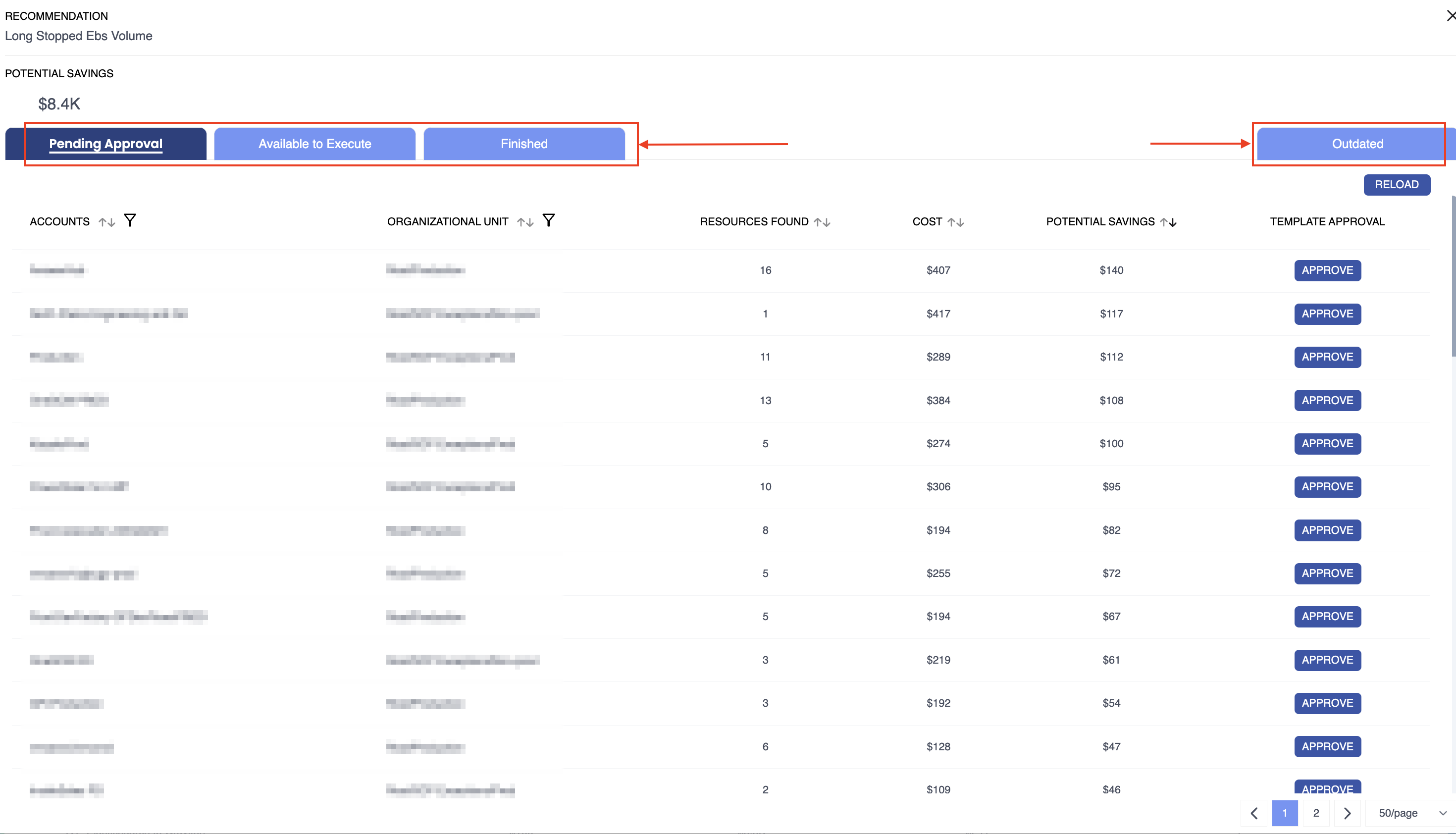
Below is the information related to the highlighted tabs:
Generate Runbooks- Lists one row per finder, with the resources found, cost, and potential savings. ClickGenerate Runbook(s)to have CloudFix deploy that finder's SSM Automation documents to your management account and share them with every account that has a matching recommendation. You only need to click this once per finder; CloudFix keeps the runbooks current after that.Available to Execute- Lists resources with open recommendations, whether or not their finder's runbooks have been generated yet. A resource is selectable once its runbooks are deployed, shown with statusReady; until then it showsPending Approvaland can't be selected. Select a resource, or select several, and clickExecuteto run the fix. In the confirmation dialog, leave Execute during maintenance window unchecked — scheduled execution isn't supported, and checking it will cause the request to fail. Executions start immediately, and you can watch their progress in AWS Systems Manager → Automation → Executions in the resource account.Finished- All the completed Fixer executions (success or failed) are displayed in this tab.Outdated- If CloudFix doesn't find the opportunities when performing the execution due to any reason (eg: resource was deleted from the AWS side), those opportunities are listed here.
On all the above tabs, there are filters provided for various columns for the ease of looking at only a subset of information. You can also sort the columns as per your requirements.
Priyanka Bhotika
Comments