Introduction
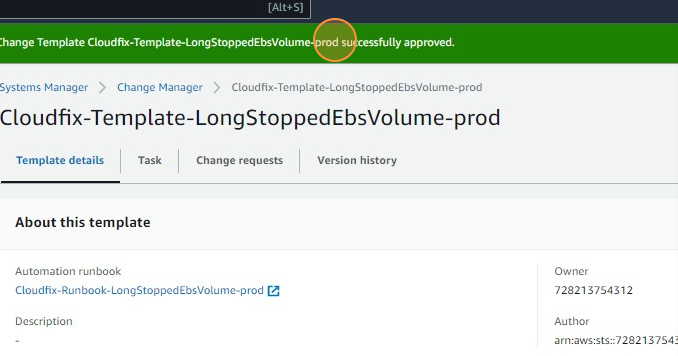
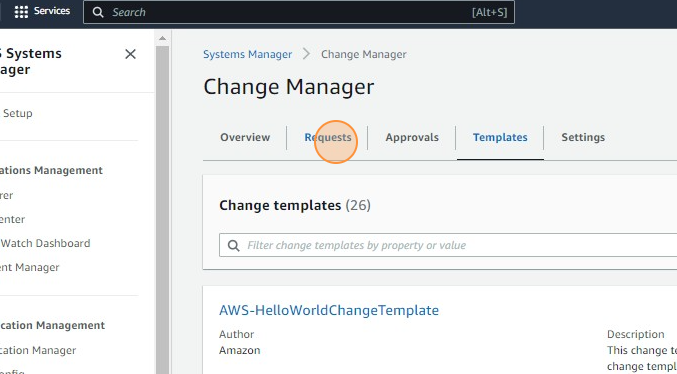
This guide walks through generating runbooks for a CloudFix recommendation and executing the resulting fixer. CloudFix runs fixes as AWS Systems Manager (SSM) Automation executions: CloudFix creates the finder's SSM Automation document (a "runbook") in your management account and shares it with the resource accounts that need it, then starts the automation when you execute. There is no separate change-template approval step and no AWS Change Manager console involved.
Accessing the Dashboard
- Open Dashboard: Visit the CloudFix Dashboard to begin.
Generating Runbooks
- View Recommendations: Click any recommendation row to open its finder modal.
Review Details: The modal opens on the "Generate Runbooks" tab, which lists one row per finder with its resource count, cost, and potential savings.
- Generate the runbook: Click "GENERATE RUNBOOK(S)" for the finder you want to make available for execution.
- Confirm: In the "Confirm Generate Runbook(s)" dialog, click "Generate". CloudFix creates the finder's SSM Automation document in your management account and shares it with every resource account that has a matching recommendation — you do not need to repeat this per account. A success message confirms how many accounts the runbook was generated for.
- Note: Generating a runbook ahead of time simply makes its resources selectable on "Available to Execute" sooner. It is not a hard prerequisite — if you skip straight to executing a recommendation, CloudFix deploys the runbook automatically before starting the fix.
Executing Fixers
- Switch tabs: In the same finder modal, switch to "Available to Execute".
- Select resources: Resources in the "Ready" state can be selected individually or in bulk.
- Execute: Click "EXECUTE".
- Confirm: In the "Confirm Fixer Execution" dialog, review the listed resources and click "Execute". Leave the "Execute during maintenance window" checkbox unchecked — scheduled execution is not currently supported, and leaving it checked will cause the execution to fail. If you need a fix confined to a specific window, contact CloudFix support instead of using this checkbox.
Monitoring Progress
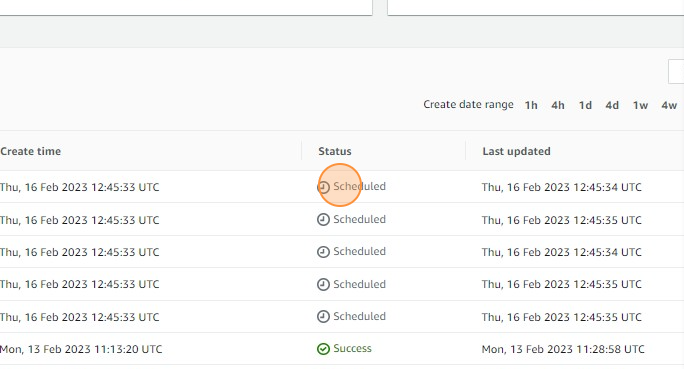
- Track status in CloudFix: The recommendation moves through "Scheduled", then "In Progress", and finally "Completed" or "Failed". Finished work appears on the "Finished" tab of the finder modal.
- Track status in AWS: To watch the underlying execution, open the resource account's AWS Console and go to Systems Manager → Automation → Executions — the parent execution runs in the account's CloudFix stack region, with a child execution in the resource's own region. Each execution has a unique Automation Execution ID (a UUID).
- Verify execution: Executions can take a few minutes to appear and complete.
Priyanka Bhotika
Comments